Article notes
Notes, guides, and personal discoveries from things I build, enjoy, and learn.
I bought an Xteink X4 expecting the international model. The hardware that arrived was the Chinese-market version.
Changing the interface language was not the whole answer. The Chinese and international stock firmware use different update services and companion-app paths, so I wanted the international firmware on the device rather than a partial translation of the Chinese release.
The usual browser flasher could not see my X4. A different USB port and an awake device made no difference: macOS exposed no USB serial device, and Chrome reported No compatible devices found. The microSD method worked.
This is the exact process I used on an original Xteink X4 with an ESP32-C3, not the X4 Pro or X4C.
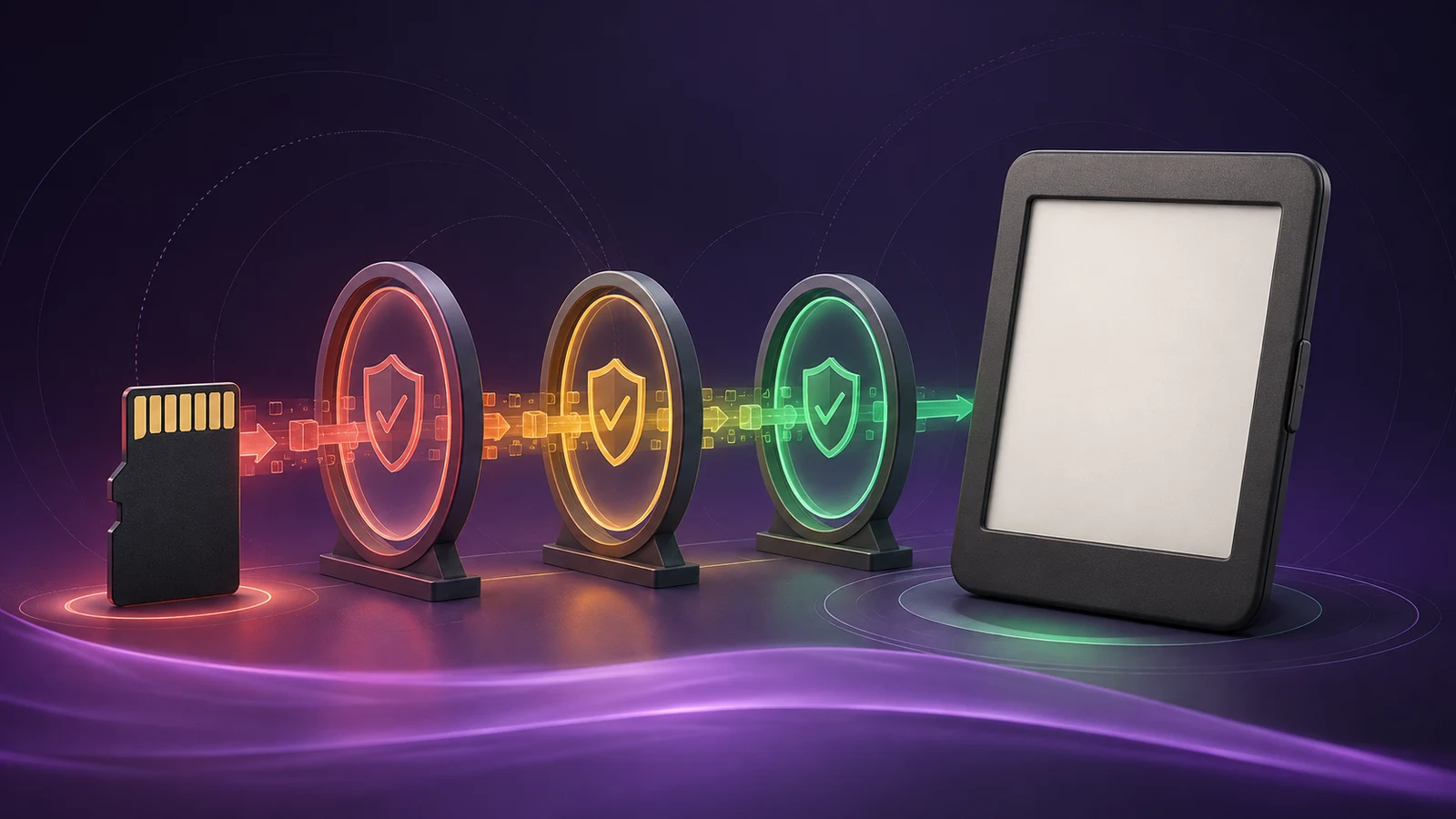
The short version
I downloaded the current international X4 image from Xteink’s overseas update service, saved it as update.bin in the
root of the X4’s FAT-formatted microSD card, safely ejected the card, inserted it into the reader, connected USB power,
and started the device while holding Up + Power.
The X4 recognized the update and installed the international firmware successfully.
Read this before flashing
Firmware installation can erase device state or leave a reader unbootable. A valid image for one Xteink model is not automatically valid for another.
Before starting:
- Confirm the device says X4, not X4 Pro, X4C, or X3.
- Charge the reader and keep it connected to stable USB power during the update.
- Back up books and any other files you cannot replace.
- Preserve the original SD-card folders; add the firmware file instead of formatting the card unnecessarily.
- Use stock international firmware from Xteink’s overseas update service. Do not substitute an arbitrary
.bin. - Never disconnect power or remove the card while the progress indicator is moving.
Some Chinese-market and third-party-store X4 units ship with USB flashing disabled. That is different from a broken USB port. It also means the community unlocker is not a universal recovery tool: its maintainers warn that putting unsupported firmware on a locked unit can leave it stuck without a recovery path.
Why the USB approach failed
The normal CrossPoint browser tool uses WebSerial to connect to the ESP32-C3 inside the X4. On an unlocked device, the flow is straightforward:
- Open the CrossPoint browser flasher in Chrome or Edge.
- Select Xteink X4.
- Select Xteink Factory Firmware → Stock English.
- Choose Flash English Firmware and connect the serial device.
In my case, there was no serial device to select. I checked the Mac directly as well as through Chrome. Changing ports and waking the reader did not make it appear.
That evidence matters. Repeatedly pressing the flash button cannot fix a device the operating system never detects. After trying a known-good port and ensuring the X4 was awake, I moved to the X4’s supported SD-card update path.
If your reader does appear in Chrome, the browser route is simpler. The rest of this guide is for an original X4 that does not expose a usable USB serial connection.
What I used
- The original Xteink X4
- Its microSD card and a card reader
- A Mac
- Stable USB power for the reader
- The international X4 stock firmware
The supplied card mounted as a 15 GB FAT volume. It already contained the Chinese sample books, external fonts, and X4 cache folders. I left those files in place.
Get the international firmware from Xteink
The CrossPoint tools project retrieves stock Xteink firmware from the manufacturer’s update APIs. For the original X4,
the international channel is api-prod.xteink.cc; the Chinese channel uses the .cn service.
At the time of this successful installation, on September 3, 2026, the international service returned V6.2.4 for
device type ESP32C3. The response pointed to this versioned file:
V6.2.4-X4-EN-PROD-0728_210023.bin
Do not assume V6.2.4 will remain current. Check the international X4 update
endpoint
and inspect its version and download_url fields before downloading. Confirm that the filename identifies X4, English,
and production firmware.
I downloaded the versioned image, renamed the local copy to update.bin, and verified that it looked like an ESP32 app
image before copying it to the card:
curl --fail --location \
  --output update.bin \
  'https://overseas-static-file.oss-ap-southeast-1.aliyuncs.com/admin_uploads/firmware/202607/28/b9dced8c-45d7-4a2b-a13a-aed22e9e0bc0/V6.2.4-X4-EN-PROD-0728_210023.bin'

stat -f 'size=%z bytes' update.bin
shasum -a 256 update.bin
xxd -l 16 update.bin
For the image I installed, the results were:
size=5665376 bytes
SHA-256 eb345d59068ad9a2a14164134cfc521444f9fd295ca05d8164f78d17a46a44f0
first byte e9
That checksum applies only to the linked V6.2.4 file. A newer legitimate release should have a different checksum.
Prepare the microSD card
Insert the X4’s card into the computer and confirm which volume appeared. On macOS, these commands help identify it without modifying anything:
diskutil list external physical
ls -1 /Volumes
My card mounted at /Volumes/NO NAME, but yours may have a different name. Verify the volume by checking its capacity
and existing Xteink folders before copying anything.
Place update.bin at the top level of the card. It must not be inside the books, fonts, cache, or download folders.
Using Finder is fine. From Terminal, quote any volume name that contains spaces:
cp update.bin '/Volumes/NO NAME/update.bin'
shasum -a 256 '/Volumes/NO NAME/update.bin'
The second checksum should match the downloaded file. If it does not, delete the incomplete copy and try again before putting the card in the reader.
Finally, eject the card cleanly in Finder or with diskutil eject, using the actual disk identifier reported for your
card. Do not guess the identifier from this post.
Install it on the X4
With the card safely ejected from the computer:
- Insert the microSD card into the X4.
- Connect the X4 to stable USB power.
- Hold Up + Power together while starting the reader.
- Wait for the firmware-update screen and progress indicator.
- Keep power connected and leave the card inserted until the process finishes and the device restarts.
The device booted successfully into the international stock firmware after this sequence.
Once it starts, confirm the reported firmware version in Settings and walk through the international setup. If you use the Xteink companion app, treat the newly flashed device as a fresh registration rather than assuming the earlier Chinese account binding will carry across.
What this process does not do
This procedure changes the stock firmware channel on the original X4. It does not prove that USB flashing has been unlocked, and it is not an instruction for installing CrossPoint, CrossInk, or another third-party firmware.
It also does not apply unchanged to the X4 Pro. The Pro uses a different ESP32-S3 platform and encrypted firmware format, and the current CrossPoint documentation says it has no equivalent stock SD-flash path. Treat every model name and image format as a hard compatibility boundary.
The useful troubleshooting lesson
The important part of this repair was not a clever flashing command. It was stopping when the evidence changed.
Chrome could not see a serial device. macOS could not see one either. A new port and an awake device did not change that. Continuing to push the USB path would only repeat the same failure. The SD card gave the X4’s existing factory updater a firmware image through a channel it could still read.
When firmware work carries a real brick risk, diagnose the transport first, verify the exact hardware and image second, and write only after both agree.
References
- Xteink X4 system updates
- CrossPoint browser and stock-firmware tools
- CrossPoint’s warning for USB-locked Xteink devices
CrossPoint is a community project and is not affiliated with Xteink. I used its public tooling and source to understand the transport and safety boundaries; the installed image itself came from Xteink’s international firmware service.
Comments
Powered by GitHub Discussions — sign in with GitHub to join the conversation, orreply on GitHub.